
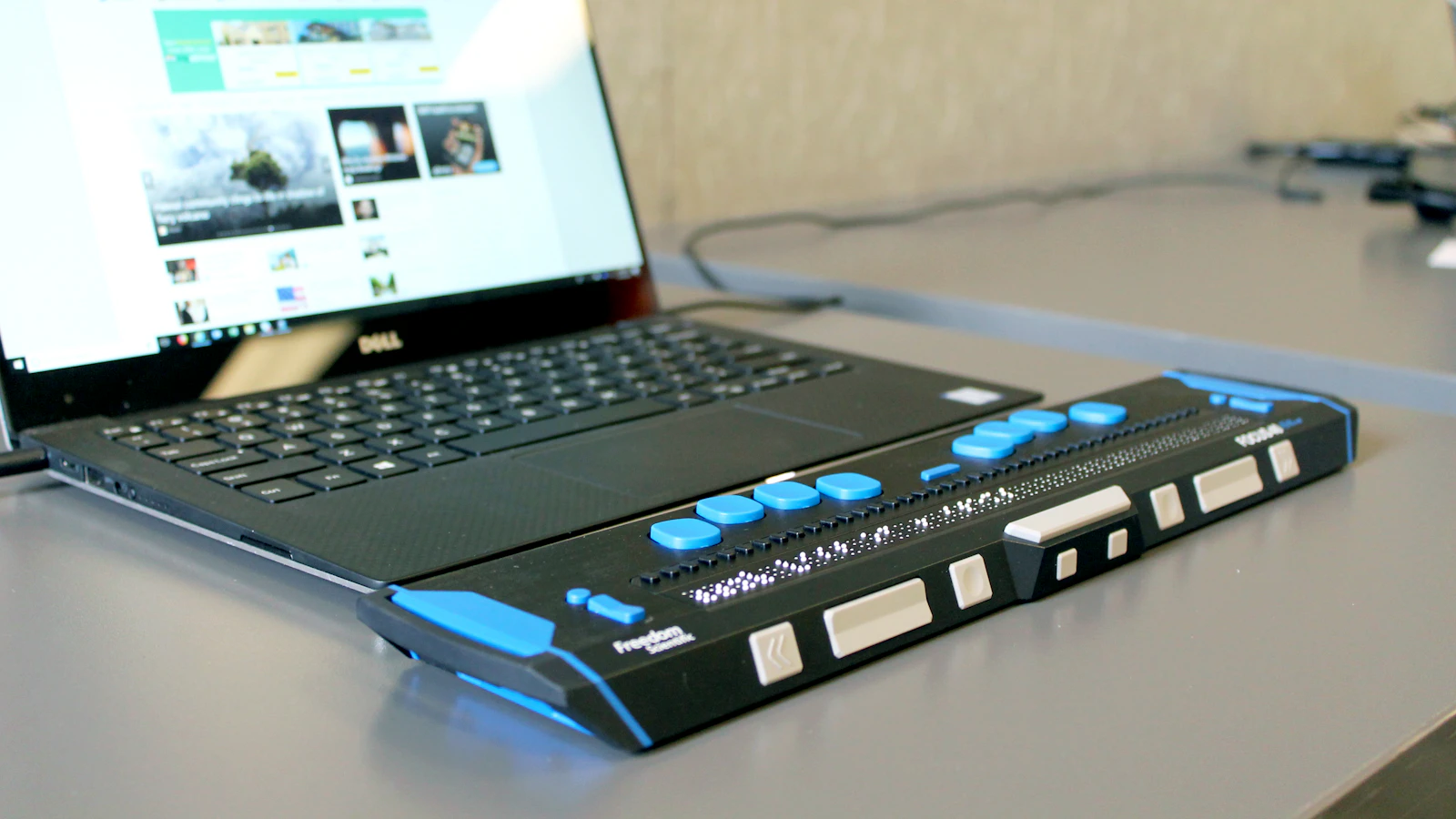
Somewhere among your visitors is a customer who navigates with a keyboard instead of a mouse, someone who listens to your pages through a screen reader, and an older client who zooms the text to 200% on their phone. If your website ignores them, they leave, quietly, and you never find out why. Accessibility is not a niche requirement; it is the difference between a site that works for everyone and one that works for most people on a good day. This website accessibility checklist turns WCAG 2.2, the international standard, into practical tasks for a business website.
In short:
- In WebAIM's 2026 analysis of the top one million home pages, 95.9% had detectable WCAG failures, averaging 56.1 errors per page.
- The same six problems cause almost all of them: low contrast, missing alt text, missing form labels, empty links, empty buttons and missing page language.
- WCAG 2.2 Level AA is the practical target for a business website; it added nine new success criteria in October 2023.
- Automated tools catch only part of the problem. Test with a keyboard and a screen reader too, and avoid one-click "overlay" fixes.
In this checklist
Why website accessibility matters for a business
Accessibility is usually framed as serving people with permanent disabilities, and that alone is a large audience: people who are blind or have low vision, who are deaf or hard of hearing, or who have motor or cognitive impairments. But the same fixes help many more people: older customers whose eyesight is changing, someone with a broken wrist, a visitor reading your site on a phone in bright sunlight, or a busy parent using one hand.
There are business reasons as well. Accessible websites tend to be better structured, which helps search engines understand them; alt text, clear headings and descriptive links are as useful to Google as they are to a screen reader. And regulation is moving in one direction. Saudi government entities follow the Digital Government Authority's accessibility requirements, which are based on WCAG, and the European Accessibility Act has applied since 28 June 2025 to many businesses selling products and services such as e-commerce to consumers in the EU, with an exemption for the smallest service providers.
95.9%
of the top one million home pages had detectable WCAG failures in 2026
WebAIM Million 2026
56.1
accessibility errors per home page on average, up 10.1% on 2025
WebAIM Million 2026
83.9%
of home pages had low-contrast text, the most common failure
WebAIM Million 2026
What WCAG 2.2 is, and what changed
The Web Content Accessibility Guidelines (WCAG) are published by the W3C. They are organised around four principles: content must be perceivable, operable, understandable and robust. Each guideline has testable success criteria at three levels: A (the minimum), AA (the level most laws and policies reference) and AAA (enhanced, not expected for whole sites).
WCAG 2.2 became a W3C Recommendation on 5 October 2023. It keeps everything in WCAG 2.1, removes the obsolete 4.1.1 Parsing criterion, and adds nine new success criteria. These are the ones that apply at Levels A and AA:
| Criterion | Level | What it means in practice |
|---|---|---|
| 2.4.11 Focus Not Obscured (Minimum) | AA | Sticky headers, cookie bars and chat widgets must not completely hide the element that has keyboard focus. |
| 2.5.7 Dragging Movements | AA | Anything done by dragging, such as a slider, also works with a single tap or click. |
| 2.5.8 Target Size (Minimum) | AA | Buttons and links are at least 24 by 24 CSS pixels, or have enough space around them. |
| 3.2.6 Consistent Help | A | Help options such as phone, WhatsApp or a contact link appear in the same place on every page. |
| 3.3.7 Redundant Entry | A | Don't make people type the same information twice in one process. |
| 3.3.8 Accessible Authentication (Minimum) | AA | Logging in doesn't depend on memory or puzzles; allow paste and password managers. |
Fix the six failures behind most accessibility errors
According to WebAIM, six types of error account for 96% of everything its automated scans detect, and they have topped the list every year of the study. Start here; most of them are quick to fix in WordPress.
Low-contrast text
Normal text needs a contrast ratio of at least 4.5:1 against its background, large text 3:1. Light grey on white is the usual offender.
Missing alt text
Every meaningful image needs a short description of what it shows or does. Decorative images get an empty alt attribute.
Missing form labels
Each field needs a visible label tied to it. Placeholder text that disappears when you type is not a label.
Empty links
Icon-only links, such as social icons, need accessible text so a screen reader says "Instagram", not "link".
Empty buttons
Menu, search and close buttons drawn with icons need a text name too.
Missing page language
The page must declare its language, for example lang="en" or lang="ar", so screen readers use the right voice.
WebAIM also found that pages using more ARIA attributes had more errors on average. ARIA is not bad, but it is easy to misuse. Prefer native HTML elements, such as a real button or a real heading, before reaching for ARIA.
Make everything work with a keyboard
Put your mouse aside and press Tab from the top of your homepage. Many visitors with motor impairments, and every screen reader user, move through your site this way. Check that:
- Every link, button, menu item and form field can be reached with Tab and activated with Enter or Space.
- There is always a clearly visible focus outline, so people know where they are. Never remove it with CSS without providing a better one.
- A "Skip to content" link appears at the top, so keyboard users don't tab through the whole menu on every page.
- Dropdown menus, pop-ups and modals open, work and close with the keyboard, and focus returns to a sensible place afterwards.
- Sticky headers and chat buttons don't cover the focused element, as WCAG 2.2 now requires.
Build forms everyone can complete
Forms are where accessibility turns directly into leads and sales. A contact form a screen reader user can't complete is a customer you never hear from.
Label every field
A visible label above each field, connected in code, and clear instructions for formats such as phone numbers.
Explain errors in words
Say what went wrong and how to fix it, next to the field. Don't rely on a red border alone.
Use autocomplete
The right autocomplete attributes let browsers fill in name, email and phone, which helps everyone, especially on mobile.
Don't ask twice
If you already have the address or email from an earlier step, fill it in or offer to reuse it.
Keep logins simple
No memory tests or puzzles; allow password managers and pasting, or offer a login link or code by email.
Forms also collect personal data, so the same review is a good moment to check your privacy wording against our PDPL website compliance checklist.
Touch targets, zoom and mobile layouts
- Make buttons and links at least 24 by 24 CSS pixels, with space between them. Bigger is better for primary actions; Apple's guidelines recommend 44 by 44 points.
- Never disable pinch-to-zoom in the viewport settings. People with low vision depend on it.
- Check that pages still work when zoomed to 200%, and that content reflows at a 320-pixel width without sideways scrolling.
- Keep text in real text, not inside images, so it can be resized, translated and read aloud.
If you designed your site mobile first, most of this comes naturally. See Design for Mobile First.
Images, video and motion
- Write alt text that describes the purpose of the image in context, not "image1.jpg" or a string of keywords.
- Add captions to videos with speech, and a transcript for audio such as podcasts.
- Avoid autoplaying video with sound. Any content that moves automatically for more than five seconds, such as a carousel, needs a pause button.
- Respect the "reduce motion" setting on phones and computers for large animations and parallax effects.
- Don't use colour alone to convey meaning, such as red for "out of stock". Add text or an icon.

Arabic and bilingual websites: getting RTL right
For businesses in Saudi Arabia, a bilingual website adds a layer that most international checklists skip. Screen readers pick their voice and pronunciation from the declared language, so getting it wrong makes Arabic content unintelligible.
- Set lang="ar" and dir="rtl" on Arabic pages, and lang="en" on English pages. A language switcher should take people to the equivalent page, not the homepage.
- Mark short passages in the other language inline, for example an English product name inside Arabic text, with their own lang attribute.
- Mirror the layout properly in RTL, including arrows and directional icons, but don't mirror things that shouldn't flip, such as phone numbers, logos or media play buttons.
- Choose Arabic fonts that stay legible at small sizes, and give Arabic text slightly more line height than English.
- Translate alt text, form labels, error messages and button names too; they are often left in English on Arabic pages.
We cover the wider planning in Bilingual Website Design.
How to test your website's accessibility
No single tool gives you the full picture. Combine quick automated scans with a few manual checks:
- Automated scan: run WAVE, axe or Lighthouse on your key pages: home, a service page, a blog post, the contact form and checkout.
- Keyboard test: complete your main task, such as sending an enquiry, using only the keyboard.
- Screen reader test: try NVDA (free on Windows), VoiceOver (built into Mac and iPhone) or TalkBack (Android) on the same task, in both languages.
- Zoom and contrast: zoom to 200% and 400%, and check text colours with a contrast checker.
- Real people: if you can, ask a user of assistive technology to try your site. Nothing finds problems faster.
Repeat the scan whenever you add a template, a plugin or a new section, and do a fuller review once a year.
A word about accessibility overlays
Plugins and widgets that promise "instant compliance" with one line of code are tempting. They can add useful user preferences, such as larger text, but they cannot fix missing labels, broken keyboard navigation or unclear content in your underlying code, and many disabled users find they get in the way. In April 2025 the US Federal Trade Commission finalised an order requiring one overlay provider, accessiBe, to pay $1 million over claims that its AI tool could make any website WCAG compliant. Fix the site itself; treat any widget as an extra, never the solution.
The complete website accessibility checklist
| Area | Check | Done? |
|---|---|---|
| Language | Correct lang and dir on every page, including the other-language version | ☐ |
| Contrast | Text 4.5:1 (large text 3:1); buttons and icons clearly visible | ☐ |
| Images | Meaningful alt text; empty alt on decorative images | ☐ |
| Headings | One H1 per page and a logical heading order | ☐ |
| Links and buttons | Descriptive text; icon-only controls have accessible names | ☐ |
| Keyboard | Everything reachable and usable with Tab, Enter and Space | ☐ |
| Focus | Visible focus outline, never hidden by sticky elements | ☐ |
| Forms | Visible labels, clear error messages, autocomplete | ☐ |
| Touch targets | At least 24×24 CSS pixels with spacing | ☐ |
| Zoom | Pinch-zoom allowed; works at 200% and 320px width | ☐ |
| Media | Captions, transcripts, no autoplay sound, pause for carousels | ☐ |
| Help | Contact options in the same place on every page | ☐ |
| Testing | Automated scan plus keyboard and screen reader test | ☐ |
Building accessible WordPress websites with Webnaa
At Webnaa we build websites in Arabic, English or both for businesses in Saudi Arabia, and the foundations of accessibility belong in the build, not in a later fix: correct language and direction for Arabic and English pages, readable contrast, real buttons and labels, a mobile-first layout and fast pages. It costs far less to get these right at the start than to retrofit them into a finished site.
Planning a new website?
Webnaa offers websites on one subscription from SAR 39 a month that includes hosting and technical support, with no setup fee, and a domain in your name on every custom-domain website; the price calculator below shows the price for your pages and languages.
Choose what you need, see your exact price
The price updates with every choice. No surprises, no hidden fees.
The calculator is off. Press the power button to start
Where will your website live: on a Webnaa address, or on a domain in your business name?
Who edits your website after launch? On static we edit it for you; on WordPress you edit it yourself from a dashboard.
How many languages will your visitors read?
How many pages does your business need? If you are not sure, five pages suit most businesses.
A subscription paid every 6 months or yearly that keeps your website with us, or buy the website in one payment and own it.
From Zoho, a global provider with data centres in Riyadh and Jeddah. More than 10 addresses are quoted separately.
FAQ
Which WCAG level should a business website aim for?
Level AA. It is the level most laws, policies and procurement rules reference, and it covers the problems that block real users. Level AAA is not expected for an entire website.
Is website accessibility a legal requirement in Saudi Arabia?
Saudi government entities follow the Digital Government Authority's accessibility requirements, which are based on WCAG. For private businesses, check the rules for your sector and any markets you sell into, such as the EU. This article is general information, not legal advice.
Can an accessibility plugin make my website compliant?
No plugin can fix every problem automatically. Overlay widgets don't repair missing labels, keyboard traps or unclear content in your site's code. Use plugins for help, but fix the website itself.
Does accessibility help SEO?
Indirectly, yes. Alt text, logical headings, descriptive link text, correct language tags and fast, mobile-friendly pages help search engines understand your site as well as helping people.
How often should I test my website?
Scan key pages whenever you change templates or add plugins, and run a fuller manual review at least once a year or before a redesign.
Summary
Most accessibility problems are not complicated; they are overlooked. Use this website accessibility checklist to fix the six common failures first, make everything work with a keyboard, label your forms, give touch targets room, and get Arabic and English language settings right. Then test with real tools and real people, and keep checking as the site grows. The result is a website that more customers can use, and one that is better built for everyone else too.
Sources: WebAIM Million 2026, W3C: What's New in WCAG 2.2. This article is general information, not legal advice.